Squads (fixed teams)
Group people who always queue together into a squad, build a team record, and create, invite, remove and disband.
このページの目次
- Before you start
- What a squad is
- Create a squad
- 1. Create it from the squad list
- 1. Use the command
- Invite members
- 1. Invite from the squad page
- 1. Invite with the command
- 1. The invitee answers in the DM
- 2. Watch pending invites
- What the squad page shows
- 3. Open a squad from the list
- 4. Members have a read-only view
- Remove a member
- 1. Remove from the roster row
- 1. Remove with the command
- Disband a squad
- 1. Disband from the squad page
- 1. Disband with the command
- Who can do what
- Where to go next
- Check it worked
Before you start
- You need the matchmaker role. Admins (people with the Manage Server permission) can do the same (Who can press what · Appointing and revoking matchmakers).
- Anyone you add to a squad must have a linked Riot account. How to link is in Link and re-verify your Riot account.
- Invites go out as DMs. The Allow bot DM notifications switch in the server settings must be on (A server admin's first 5 minutes). It starts off.
- This works only on a bot with in-house matches turned on. The big picture is in Run a match, step by step.
What a squad is
A squad is a fixed roster of up to 5 people who usually queue together. Its name is unique on the server. Once they are grouped, the ranked and normal games they play together on the same side add up as the team record by themselves. There is nothing to enter. Manually entered games that a matchmaker approved also count if they were on the same side (Confirm a result and enter records).
- The team record starts once the roster has at least 2 confirmed members. People who were invited but have not accepted yet do not count.
- Only games where every confirmed member was on the same side count. Being in the same game on opposite sides does not.
- The record is recalculated from the current roster each time you look. Adding or removing a member can change the numbers.
There is no box for picking a squad when you create a match. A match's two teams are built on the create screen on their own (Team balance, lanes and positions).
Create a squad
どこで行いますか?
Webコンソールで
Create it from the squad list
Type a name in the New squad box at the top and press Create. The new squad's detail page opens right away so you can invite members.
Discordで
Use the command
/squad createPut the name in name. After trimming spaces it must be 1 to 32 characters.You get a reply that only you can see.
A name that already exists is refused with a notice. There is no rename, so if you made a typo, disband the squad and create it again.
If the new name shows in the Squads list of the web console, it exists.
Invite members
どこで行いますか?
Webコンソールで
Invite from the squad page
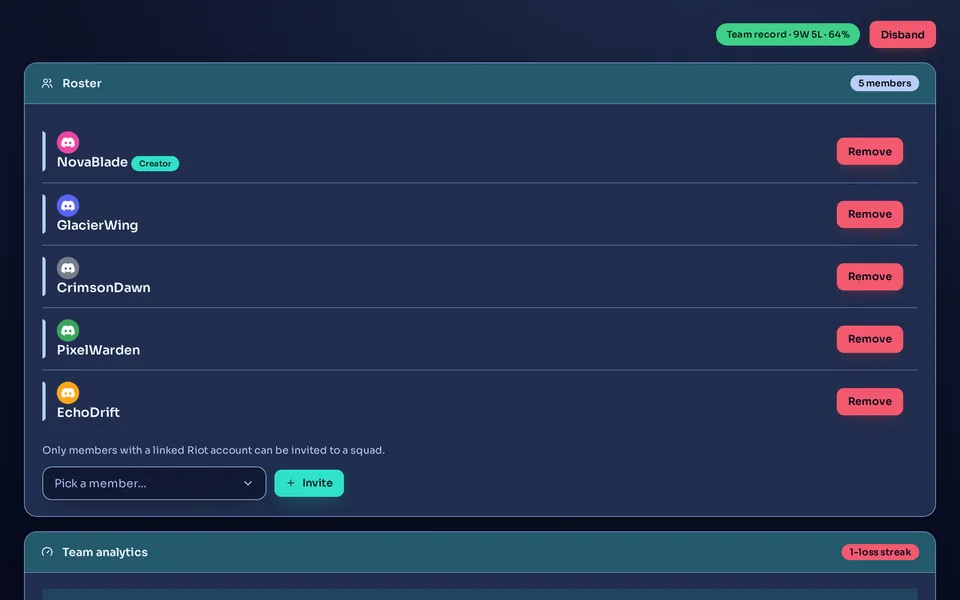
Under the roster, pick a member in the Pick a member… box and press Invite. Members without a linked Riot account appear greyed out as … (Riot not linked) and cannot be picked. How to link is in Link and re-verify your Riot account.
Discordで
Invite with the command
/squad addPut the squad name in name and pick the person to invite in member.The invited person gets a DM. If it cannot be delivered (they blocked DMs, or the server's DM notifications are off), they are not added and the bot tells you why.
In the admin console's Members list, open the three-dot button (Quick actions) at the end of a member's row and you will find a box for picking a squad and a plus button. Pick a squad and press the plus button to send the same invite DM. Only server admins can open this page, so someone who is only a matchmaker invites from the squad page or with the command. With no squad yet, this box is not shown.
The invitee answers in the DM
Accept joins the roster. Decline drops the invite and frees the slot. Only the invited person can press them. If the squad was disbanded in the meantime, the bot says “This invite is no longer valid.”
Watch pending invites
Until the answer comes, the roster row carries a Invite pending chip and a count of how long it has waited. Change your mind with Cancel invite.
- A roster holds up to 5 people. Pending invites take a slot too.
- Only members with a linked Riot account can be added.
- Someone already on the roster (pending included) cannot be invited again.
- An invite sent from the web stays pending even if the DM did not arrive. If there is no answer for a long time, clear it with Cancel invite, check the DM settings and invite again. An invite sent by command is rolled back automatically when the DM fails.
Once the invitee presses Accept, the Invite pending chip disappears from the detail page and the roster count chip goes up by one.
What the squad page shows
Open a squad from the list
 12345
12345
- Before there are 2 confirmed members you see “Team games start counting once the roster has 2+ members.” and the list shows Not counted yet.
- With no games together yet you see “No team games recorded yet — they accrue automatically when the roster queues matchmade games together.” It fills in by itself.
- In Discord, use
/squad info. Leave the name empty for the list of squads, or give a name for the roster, record and recent results.
Members have a read-only view
Any member of the server can open Squads in the server home sidebar to see the squad list and team records. Your own squads carry a My squad label and come first. This view is read-only: pending invites are not shown, and there are no create, invite or disband buttons.
If the Team record badge shows at the top of the detail page, counting has started.
Remove a member
どこで行いますか?
Webコンソールで
Remove from the roster row
On the squad page, press Remove on the member's row, then Remove again in the confirmation window. A pending row has Cancel invite instead.
Discordで
Remove with the command
/squad removePut the squad name in name and pick the member to remove in member.Disband a squad
どこで行いますか?
Webコンソールで
Disband from the squad page
Press Disband at the top right of the squad page, then Disband again in the confirmation window.
Discordで
Disband with the command
/squad disbandPut the squad name in name. It is disbanded at once, with no confirmation window.The squad and its roster are deleted, and there is no undo. Invites that have not been answered stop working. The game records themselves are kept. To group the same people again, create a new squad and invite them again.
Who can do what
- Create, invite, cancel an invite, remove and disband: matchmakers and server admins only. Unlike matches, any matchmaker can manage any squad, not just the ones they created.
- View: any server member, through the read-only web page and the
/squad infocommand. - Accept or decline an invite: only the invited person.
Where to go next
To build the teams of a match, see Team balance, lanes and positions. The order for taking a created match to the end is Run a match, step by step. After the game, continue with Confirm a result and enter records. When you ask a member to link Riot, point them to A member's first 5 minutes.
Check it worked
The Squads list in the web console has your squad, and its roster shows at least 2 confirmed members. If the Team record badge shows at the top, you are done.