A tour of the web console and logging in
Log in with Discord, pick a server on Home, and see how the admin console differs from the member screens.
このページの目次
- Before you start
- Log in with Discord
- 1. Click Log in
- 2. Allow it on Discord
- Pick a server on Home
- 3. Look at the switcher at the top
- 4. Find your server cards
- 5. Click where you want to go
- Look around the admin console
- What members see
- Collect your notifications in the bell
- A server with no trigger yet
- Where to go next
- Check it worked
Before you start
- A Discord account
- Membership in a server that has the Kletoi bot
- Opening the admin console needs the Manage Server permission
If the bot is not in your server yet, invite it first.
Log in with Discord
Click Log in
Click Log in at the top of kletoi.com. If the login ends or gets stuck, see The console is locked or commands are missing.
Allow it on Discord
A Discord screen opens. Allow Kletoi to see your account name and the list of servers you are in. If you allowed it before, this screen is skipped.
After you allow it, you land on Home in Kletoi.
Pick a server on Home
Look at the switcher at the top
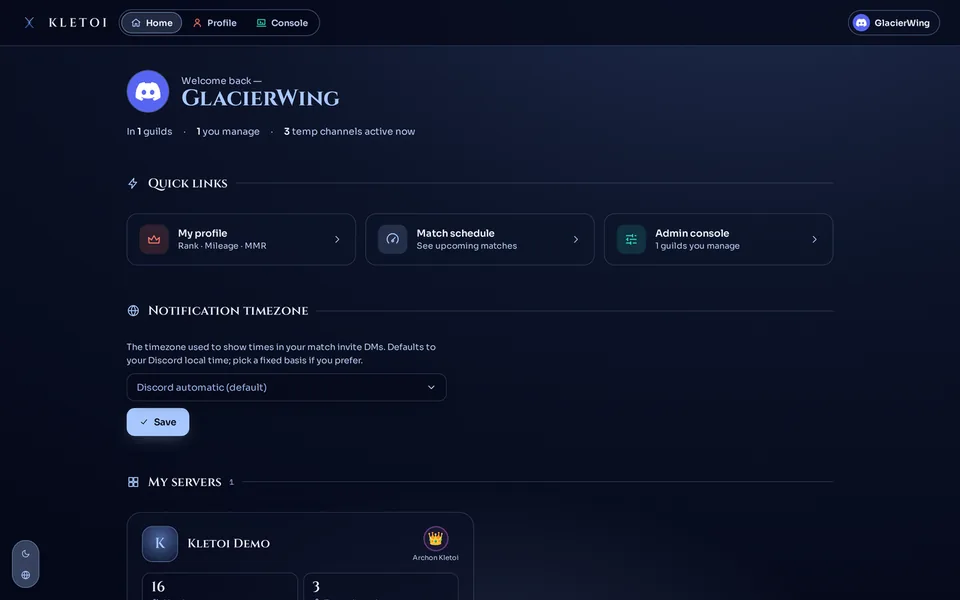
At the top of Home there are Home, Server, Profile and Console. Console shows only if you can manage a server.
 12
12
Find your server cards
Scroll down to My servers for your server cards. Servers you can manage come first. A card shows member count, people in voice, temp channels, your tier, and a Free or Premium tag. Checking the plan is in Compare plans and free-tier limits.
Click where you want to go
- Server home — any server member can open it. Server rankings and recent activity are gathered here. Read the ranking in Voice mileage, tiers and badges and Build up and review your Kleos activity score.
- My profile — see your tier and activity score.
- Admin console — only on cards of servers where you have Manage Server.
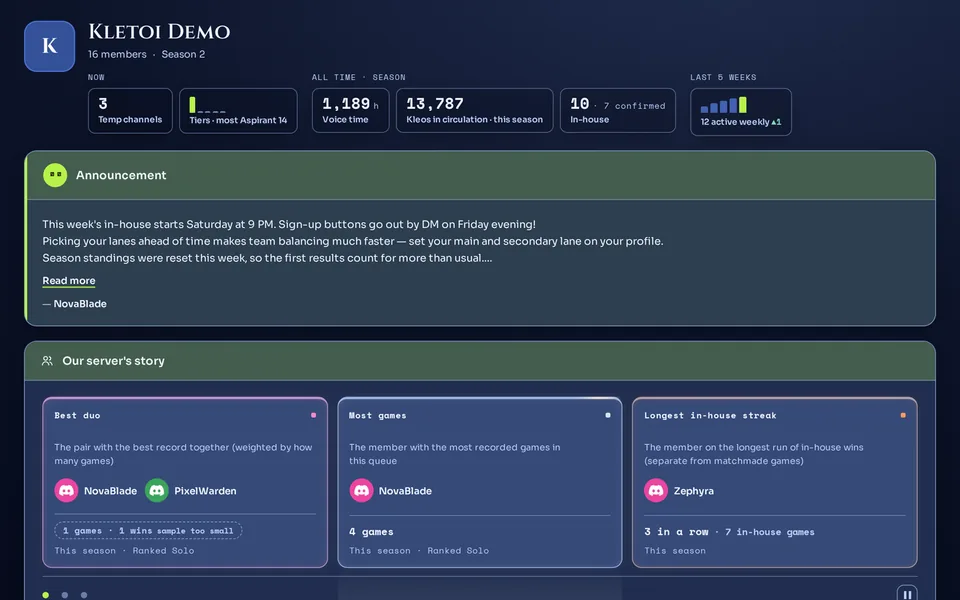
Click your name at the top right for Switch account and Log out. How to end the sign-in on other devices in one step is in Log out other devices.
Look around the admin console
Open Admin console from a card and the Manage menu is on the left. The Admin console button shows only on cards of people with Manage Server.
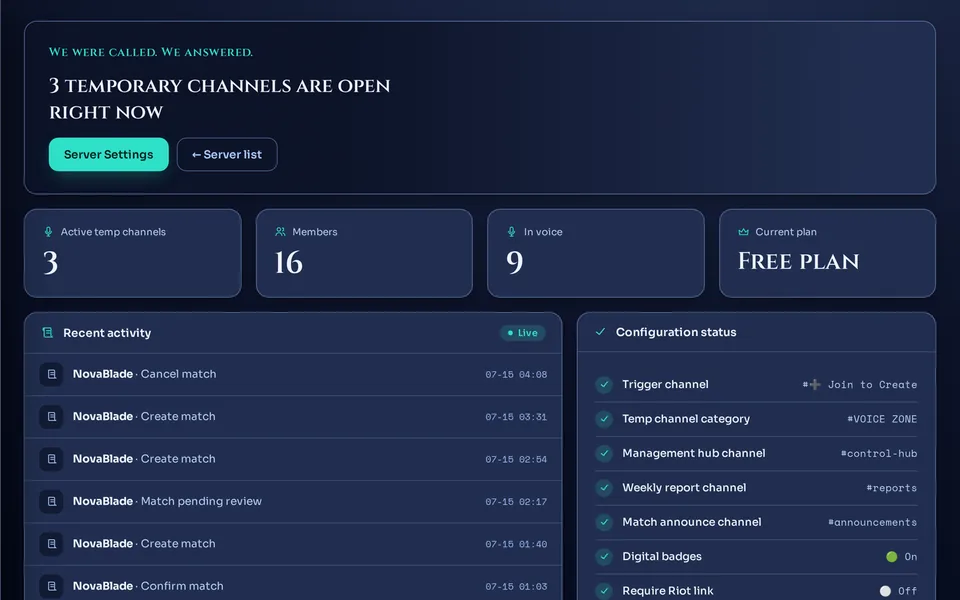
- Overview — see the server at a glance.
- Settings — change server settings. A map of the page is in Server settings at a glance.
- Active channels — the temp channels that are open now. When some are open, the count shows as a number.
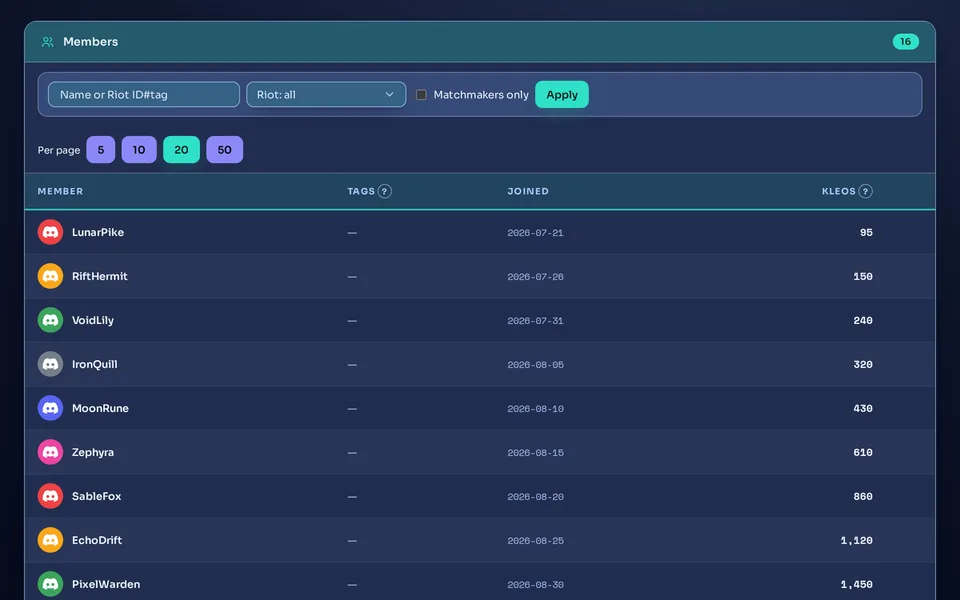
- Members — see the member list. On a bot with in-house matches turned on, you also appoint matchmakers here (Appointing and revoking matchmakers).
- Audit log · Health · Challenges · Premium — to create a challenge, see Weekly challenges, and to read matchmaker appoint and revoke entries in the audit log, see Appointing and revoking matchmakers. To check the plan from the Premium item, see Check which plan your server is on; to start Premium, see How to start Premium.
- On a bot with in-house matches turned on, Matches, Squads and Manual records appear too. The squads menu is covered in Squads (fixed teams).
- Guided setup — shown only while setup steps are left. The number is how many remain.
What members see
On a card for someone without Manage Server, there is no Admin console button. Only Server home and My profile open. Admins can open My profile too.

What each part of the profile shows is in Your profile and match history.
In the My Info menu on the left, jump to My tier, Activity or Leaderboard. Each box is explained in Voice mileage, tiers and badges and Build up and review your Kleos activity score. On a bot with in-house matches turned on, a Matches group (Ranked, MMR trend, My matches and more) appears too.
Collect your notifications in the bell
Inside a server's screens (the admin console, the server home and your profile), the top bar has a Notifications bell. A number shows on it when you have unread notifications.
Press the bell and the 20 most recent notifications for this server gather in one panel. Notifications pile up per server, so another server's notifications are in the bell on that server's screens. A match notification takes you to that match when you press its line (from the admin console's bell, to the console's match screen). Lines read as short sentences like “You're invited to match #N — joining?”. Press Mark all read to clear the number at once.
- The bell is a summary. The full message arrives as a Discord DM.
- A notification whose DM could not be delivered carries a DM not received mark. If the server has DM notifications turned off, that line does not appear in the bell. Causes and fixes are in I didn't get the invite DM.
Press the bell and the Notifications panel opens with recent notifications as lines. With none, it says “No new notifications”.
A server with no trigger yet
If a server has no trigger voice channel, an admin who opens the admin console lands on Guided setup first. Sidebar menus get a lock and take you back to this screen. Premium is not locked. Set this one thing and the whole console opens. You can skip the other steps. On a server where the bot lacks the permissions it needs, this lock does not apply.
Open the admin console and Guided setup opens by itself with the trigger window ready. How to set it is in the admin's first 5 minutes. Once a trigger is set, the locked menus open, and you can do the optional steps later in Guided setup. If the menus stay locked, see The console is locked or commands are missing.
Where to go next
Admins can continue with the admin’s first five minutes. Members can read the member’s first five minutes. If bot permissions confuse you, see bot permissions. To read the profile screen and your records in detail, see Your profile and match history. Tiers, Kleos, challenges and seasons continue in Voice mileage, tiers and badges, Build up and review your Kleos activity score, Weekly challenges and Running a season and its wrap-up. How to end the web sign-in on a lost device is in Log out other devices.
Check it worked
You are done when your server cards show on Home and Server home or My profile opens from a card. Admins can open Admin console too. On a server with no trigger, Guided setup opens first.