Confirm a result and enter records
Confirm a result by picking the winner, enter games played outside the flow and get them approved by a matchmaker. Know what cannot be undone.
On this page
- Before you start
- Confirm a result by picking the winner
- 1. Open the match page
- 2. Press Confirm result
- 3. Pick the winning team and confirm
- Enter a game played outside the flow
- 4. Open the entry page
- 5. Fill in the game details
- 6. Fill in the roster
- 7. Press Submit
- Review a manual entry: approve or reject
- 8. Open the review page
- 9. Expand an entry and check the values
- 10. If it is right, press Approve
- 11. If it is wrong, press Reject
- What members see
- If something was recorded wrong
- Where to go next
- Check it worked
Before you start
- Whoever records a result is a server admin or the matchmaker who created that match. On a match someone else created, a matchmaker does not see the confirm button (admins see it on every match · Appointing and revoking matchmakers).
- A result can be recorded only while the match is at Lineup locked or In progress. Before that, the result button does not show. The stages are laid out in Run a match, step by step.
- For a game played outside the flow, any server member can enter it by hand, and a matchmaker reviews it (a server admin can too). Both are done on the web.
Confirm a result by picking the winner
Open the match page
Open the match you just finished from the list.
Press Confirm result
When the game is over, press Confirm result on a match at In progress. If it is still at Lineup locked, the Record result now button in the Matchmaker controls area skips Start match and opens the same window.
Pick the winning team and confirm
In the confirm window, pick the winning side — Team 1 or Team 2 — in the Select the winning team row. Then tick the checkbox below, and Confirm becomes available. Until both are done, the button stays locked.
- Both teams need someone who joined (or answered Maybe). If a team is empty you get “Both teams need players.”.
- If Maybe answers remain, the window tells you at the top. On confirm, everyone who was Maybe is turned into a joined player and recorded as such.
- The No result option ends the match without a result (explained below).
We are preparing a feature that pulls a game's result from Riot and automatically voids a game that reads as a remake. It is not active yet, so there is nothing to do today.
Confirming applies MMR right away. A confirmed match has no button to change the winner and no cancel button; its controls are locked. Who confirmed it is recorded. There is no review step after you confirm, so check the winning team once more before you press the button.
Pick No result in the confirm window and confirm, and the match ends as No result (the hint under the option reads “No MMR · closes, no notice”). MMR is not touched and no notice goes to the players. The page shows the lock notice “Match ended without a result. MMR not applied.”. This cannot be undone either.
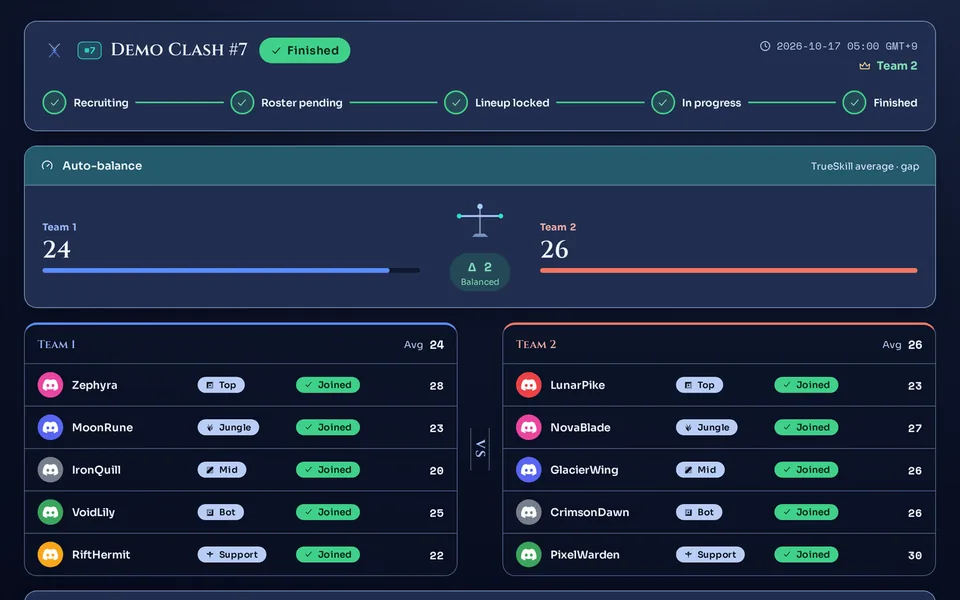
- The match becomes Finished, with the winning team and who confirmed recorded. If a member says the card is missing from their profile, point them to My records are missing.
- The rating (MMR), games played and wins of every joined player are updated together. If anything fails midway, the confirmation is rolled back with it, so a result is never half-written. The rating right after the game is also kept for the trend graph.
- Players get a DM titled “Your in-house game was recorded”. It arrives only if the server's Allow bot DM notifications switch is on (A server admin's first 5 minutes) and the member has not turned off result notices.
- If the server turned on Auto-post result card and set a Match announce channel, a result card image is posted to that channel (Share cards and result cards · Server settings at a glance).
- Confirming a result neither adds nor deducts Kleos. In a match, Kleos deductions come from no-shows. Details are in Build up and review your Kleos activity score.
- On servers that use seasons, games and wins go back to 0 when the season rolls over, and the rating is pulled toward the baseline.
 1
1
After you confirm, the top of the page shows the Finished status and the winning team, and a line saying “Match confirmed. MMR applied; controls are locked.” appears under the rosters.
Enter a game played outside the flow
This is the way to enter by hand a custom game (a game you set up yourselves, like an in-house match) that was not created in Kletoi and is not recorded by the League client. Any server member can submit one, and a matchmaker (or a server admin) has to approve it before it counts. A match you created and confirmed in Kletoi is already recorded, so do not enter it again here. How it looks on a profile is in Your profile and match history.
Open the entry page
On your server's card in Home, press Server home, then pick Add a record under the Custom games group in the left menu.
Fill in the game details
Put the time the game was played in Played at (required). Duration (minutes) may stay empty; if you fill it, it must be 180 minutes or less. In Winning team, pick the side that won. Blue is selected at first, so change it if Red won.
For a single game, leave Single as it is in the Format row. For one set of a series, change the format and submit one entry per set.
Fill in the roster
In the Roster panel, press Enter roster (10) to open the window and enter each player on a line. Member (picked from the server's members), champion, kills, deaths and assists are needed; the lane may stay empty. Fields such as runes, items and damage are optional. For a game with people from outside the server, enter them by Riot ID with the Guest — enter by Riot ID item at the bottom of the member menu. It works the same for an in-house game and a scrim; picking Scrim in the Type row just shows the hint “Guests go in by Riot ID · at least one server member is needed”. The details are in When you are short of players.
- Up to 5 per team. For a 4v4, leave the extra slot empty.
- The same member cannot be entered twice, and at least one player is needed.
- Kills, deaths and assists accept numbers up to 999. If you enter damage, the game length in minutes is needed too.
Press Submit
The Note (optional) field is for a word to the reviewer. After you submit you see “Submitted. Once a matchmaker approves it, the records land and you get a DM.”.
- The entry waits as pending. It does not count in any record until it is approved.
- There is no screen for the submitter to edit an entry. If it is wrong, a matchmaker rejects or deletes it and you submit again (see “If something was recorded wrong” below).
- Matchmakers get no separate notice of a new submission; they have to open the review page.
You are done when the submit notice appears. It is normal that nothing shows on the profile until it is approved.
Review a manual entry: approve or reject
Open the review page
Entries nobody has handled yet pile up in the Pending section. Approved and rejected ones move down to the Processed section.
Expand an entry and check the values
Look at the winning team, the roster, champions, kills, deaths and assists, and the submitter's note. The server blocks only format problems (kills, deaths and assists up to 999, and so on). A typo such as 5 entered as 555 is for the reviewer to catch. If an entry has damage and the per-minute damage is above 1,500, a Check DPM mark appears. It does not block anything; it asks you to look twice.
If it is right, press Approve
Approving turns the game into records for the members on the roster. It shows on their profile's Custom games tab and also counts in squad and duo records (Squads (fixed teams)). Approval does not change MMR or Kleos.
MANUAL-1 ()
A matchmaker reviewed and approved it, so it counts toward squad and duo stats.
If anything is wrong, tell a matchmaker — it can be removed and re-added.The DM does not reach a member who blocked DMs or turned it off in personal settings. If only some got it, the page tells you how many of the roster it reached. Approval stands even when a DM fails.
If it is wrong, press Reject
Type the reason in Reason (optional) and reject. The reason may stay empty, but if you write one it goes to the submitter in a DM. A rejected entry creates no record.
MANUAL-1 ()
Reason: Sample text — the real inquiry or reply goes here.
No records were created. You can fix it and submit again.After you approve, the entry moves to Processed with an Approved badge, and the page shows “Approved. Records were promoted and everyone on the roster was DMed.” (if only some DMs went out, it tells you how many).
What members see
On a member's profile, the Custom games tab collects, one card per game, the matches they played in with a recorded result and the approved manual entries. The winning side is marked on each card. Where the tab is and how to read it is in Your profile and match history.
If something was recorded wrong
- The winning team of a confirmed match, or a match ended as No result: there is no button to change it. It cannot be undone, so check in the confirm window beforehand.
- A match ended as No result although the game was played: if you want it on record, you can enter it by hand as above and have it reviewed. MMR is not applied.
- If an unreviewed entry is wrong: a matchmaker sends it back with Reject and a reason, and the submitter fixes it and submits again. To clear it quietly, use Delete (no DM is sent in that case).
- If an entry you already approved is wrong: approve and reject work only once per entry, so it cannot be handled again. Press Delete and confirm in the window. The records that approval created disappear with it, and the roster gets a DM saying so (not those who blocked or turned off DMs). Then submit it again with the right values and review it.
- Deleting removes only the records made from manual entries. Other records are not touched.
MANUAL-1 ()
A matchmaker deleted it, so it no longer counts toward squad and duo stats.
If it's registered again, you'll get a new notice.- “The roster is empty. Add at least one player.” — no row has a member picked.
- “The same member appears twice on the roster.” — a person goes in one slot only.
- “Some values break a rule. Please check them again.” — check for a team over 5 players, an empty champion, a number over its limit, or a game time far in the future.
- “Please check the match time.” — shown when the time field is empty or unreadable. Pick the time again.
- “Someone on the roster has not been synced yet.” — shown when you approve. The entry stays pending, so approve it again a little later.
Where to go next
To sort out no-shows and collect feedback after confirming a result, see No-shows, marks and MVP. How to create a match and move it through its stages is in Team balance, lanes and positions and Run a match, step by step. To show members how to read their profile, send them Your profile and match history and A member's first 5 minutes. If the web screens are new to you, see A tour of the web console and logging in. The in-house match metric of a weekly challenge counts only matches with a confirmed result (Weekly challenges), and what happens to ratings at a season change is in Running a season and its wrap-up.
Check it worked
A confirmed match is locked as Finished, and an approved manual entry stays in Processed as Approved. You are done when the card shows on the Custom games tab of a member who played.