Team balance, lanes and positions
Set the teams, lanes and an optional schedule when you create a match, split two teams by rating, and learn preferred positions and the size and lane rules.
Contenido de esta página
- Before you start
- What auto-balance looks at
- Build the teams yourself when you create a match
- 1. Press Create match
- 2. Add members to both teams
- 3. Use preferred positions as a hint
- 4. Pick a lane for everyone
- 5. Set a schedule (optional)
- 6. Press Create — send invites
- Start from the ⚔️ button on a room panel
- 7. Press ⚔️ Start in-house
- 8. Open the team builder with 🌐 Build teams on web
- When it is not 5 v 5
- Split the teams with auto-balance
- 9. Open the match
- 10. Press Auto-balance
- 11. Check the balance gauge
- Change and check lanes
- 12. Pick a lane on the roster line
- 13. Swap a person
- Members' preferred positions
- When someone has no rank or history
- Where to go next
- Check it worked
Before you start
- You need the matchmaker role. Admins (people with the Manage Server permission) manage every match; a matchmaker manages only the matches they created (Who can press what · Appointing and revoking matchmakers).
- Team balance happens in the web console, under Matches. There is no Discord command for it.
- This page is about creating a match: set the teams, lanes and an optional schedule, then create it. How to move a match through its stages afterwards is in Run a match, step by step.
What auto-balance looks at
Auto-balance looks at one number per person: their rating (MMR). It splits the players so that the two teams' rating totals end up as close as possible.
- Rating: the value built from confirmed match results on this server. It is the small number next to a name, and it changes when a result is confirmed, when the season rolls over, or when an admin resets a member's rating.
- Replies: only people who answered Joined are split into teams. Anyone with another reply is left out.
- Ignored: Riot rank, preferred positions, tier and Kleos play no part in the balance.
- It does not pick lanes. It only splits the teams and leaves every lane as it was.
Build the teams yourself when you create a match
Press Create match
Add members to both teams
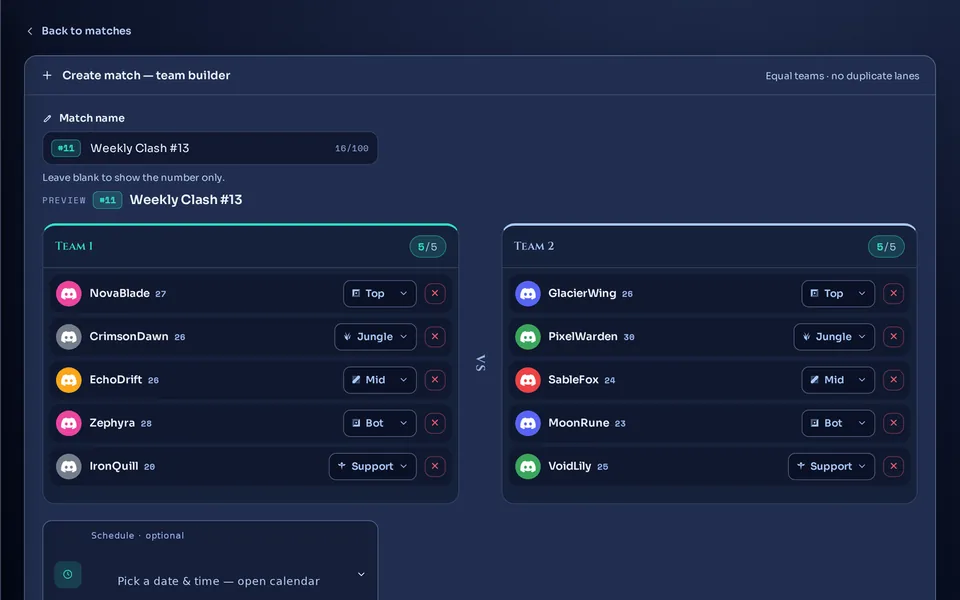
Press Add member on each team and pick members. The number beside a name is the rating; someone with no confirmed match yet shows the default (25). Compare the two teams' totals by eye.
 123
123
Use preferred positions as a hint
In the add-member list, the preferred positions a member has chosen show as small lane icons beside the name. Hover a chip to see whether it is a main or a secondary position. People who never chose any have no icons. It is only a hint you read in this list; nothing fills lanes for you.
Pick a lane for everyone
Choose a lane in the Lane box for each person. There are 5 lanes (Top, Jungle, Mid, Bot, Support). If you pick a lane a teammate already holds, the two of you swap lanes, so you never have to remove and re-add anyone.
- Both teams must be the same size, from 1 to 5 players each.
- Everyone needs a lane.
- Lanes must not repeat within a team. The other team may use the same lanes.
Set a schedule (optional)
Under the teams, press the Schedule · optional box to open the calendar and pick a date and time. The match is created even if you leave it empty.
- With no time: the invite never expires and no reminder DM goes out before the start.
- With a time: an invite expires 1 hour after the scheduled time and its answer buttons stop working. Once the start is within 60 minutes, members who have not answered get one reminder DM (only while the match is recruiting).
- To set it later: on the match screen while it is recruiting or has its roster pending, use Open a time poll to ask members which times work. Confirming the poll makes that time the scheduled time. How to run the poll is in Recurring matches and time polls, and the stage flow is in Run a match, step by step.
Press Create — send invites
When the lineup is valid, the bar below says “Ready — equal teams, no duplicate lanes” and Create — send invites turns on. Otherwise it shows “Both teams must be the same size (up to 5 players each).”, “Assign a lane to every player.” or “Lanes are duplicated within a team.” and the button stays off. The server checks the same rules again. If something is off, the match is not created and you land back in the builder with only the members kept. They are placed on the two teams in turn and the lanes are empty, so set the teams and lanes again.
If the bar below says “Ready — equal teams, no duplicate lanes”, the lineup is valid.
People pulled in from a voice channel are placed on the two teams in turn. Ratings are not looked at. Check the two totals and move people by hand. Lanes start empty, so pick them yourself.
Start from the ⚔️ button on a room panel
To build teams from the people already in a voice room, start from the ⚔️ Start in-house button on the temporary room's panel. The button does not create a match. It only gives you a link to the team builder with that room's people already filled in.
- Only matchmakers and people with the Manage Server permission can press it. Anyone else sees “Only a matchmaker (or admin) can do this”.
- The panel has this button only when the bot's in-house features are on.
- The room needs at least 2 people, bots not counted. If not, you see “You need at least 2 people in the voice channel to start an in-house”.
Press ⚔️ Start in-house
With 10 people or fewer in the room, a Start an in-house with this channel? notice only you can see appears right away. The Pulled roster line lists the people it pulled in. Bots are left out.
With 11 people or more, a “Pick who's playing” list comes first. Pick up to 10. The list shows up to 25 people. Anyone who leaves the room while you pick is left out.
Open the team builder with 🌐 Build teams on web
The 🌐 Build teams on web link under the notice opens the match builder in Matches. A banner like “Pulled 8 from voice channel ‘name’” shows at the top, and when people are missing it says so, like “N more needed — add members to the teams”. How the pulled-in people are placed on the two teams is in the box above.
- The link captures the people in the room at that moment, once. If the room changes after you open the page, the page does not follow. You can add or remove people yourself.
- People who left the server are not pulled in. Only active members of the server are filled in.
- No match exists until you build the teams and press the create button. No member is notified before that.
The team builder shows a banner with the number of people pulled in. No match appears in the list before you press Create — send invites.
When it is not 5 v 5
4 v 4 and 3 v 3 work too. As long as both teams are the same size, any size from 1 to 5 per team is fine. Use only as many of the 5 lanes as you need: with four players per team, four lanes. Odd head counts and recording people from outside the server are in When you are short of players.
The only way to change the roster is to swap one person at a time with Sub. The substitute inherits the outgoing player's team and lane. It is best to create the match once the head count is settled.
Split the teams with auto-balance
Open the match
Auto-balance works only while the match is Recruiting or Roster pending. From the Lineup locked stage on, the teams are locked.
Press Auto-balance
Press Auto-balance in the Matchmaker controls box. If some people have no team yet, the same button is in the Summoned players box. You then see “Teams auto-balanced.”
Check the balance gauge
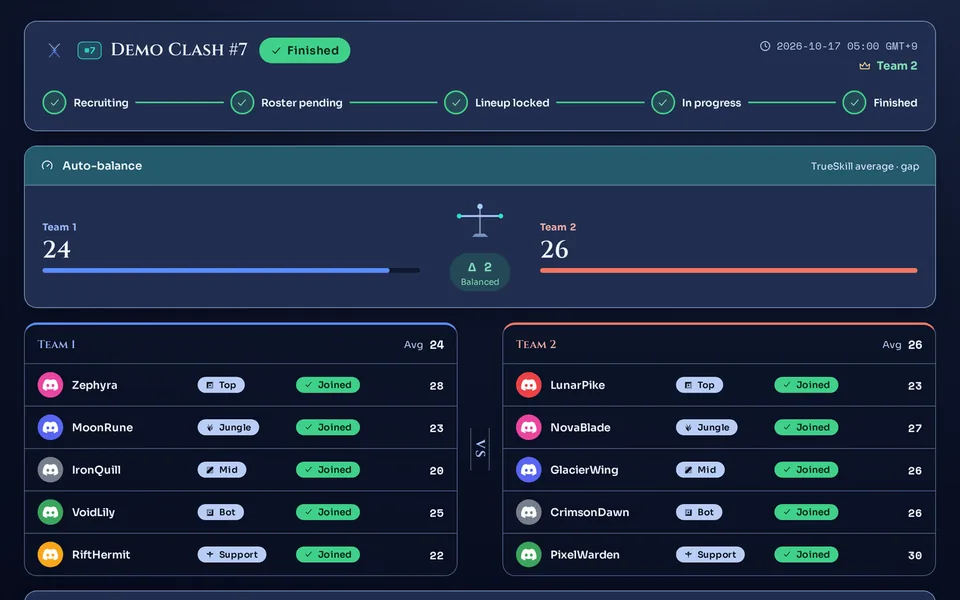
The Auto-balance box shows each team's average rating and the difference (Δ). A small gap reads Balanced and a large one Imbalanced. Each team also lists its own average.
 1234
1234
People are split between Team 1 and Team 2, and the Auto-balance box shows the averages and the gap.
Auto-balance clears every team and then places only the people who answered Joined. Teams you built by hand at creation change too. People who have not replied, or who answered Maybe or Declined, stay without a team in the Summoned players box.
- With an odd number, Team 1 gets one more player. No warning appears, so check the head count yourself.
- With fewer than two people at Joined, you see “Both teams need players.”
- With more than 16 people at Joined, you see “Too many players to auto-balance — split the teams by hand.”
- With the same roster and ratings, pressing it again gives the same teams. If you do not like the result, adjust lanes or swap people as described below.
Change and check lanes
Pick a lane on the roster line
While the match is Recruiting or Roster pending, each person who is on a team has a lane box on the match page. Picking a lane saves right away and shows “Lane updated.”
Unlike at creation, a repeated lane within a team is saved here. Auto-balance leaves lanes untouched, so after pressing it, check by eye that no team has a lane twice.
Swap a person
In the Sub row of the Matchmaker controls box, pick who leaves in Player to remove… and who comes in with Substitute to add…. The newcomer is Joined at once and takes over the outgoing player's team and lane. You can swap during the Lineup locked stage too. Nothing is re-balanced automatically.
After you press Lock lineup, the lane boxes turn into read-only labels. Settle teams and lanes before that. The stage flow is in Run a match, step by step.
Members' preferred positions
On their profile, under Preferred positions, each member picks one Main position and up to 2 Secondary positions for each server. Secondary positions have no order. On save, a secondary that repeats the main one is dropped, and if only secondaries were picked, one becomes the main. See A member's first 5 minutes for how.
- In the team builder's add-member list, as lane icons.
- Neither auto-balance nor the lane boxes use it. You decide the lanes.
- It does not appear on the match page roster, so look it up in the add-member list before you set lanes.
When someone has no rank or history
- Someone with no confirmed match counts at the default rating (default value: 25), so every newcomer has the same value.
- If everyone is new, the ratings are equal, so auto-balance only evens out the head count and cannot tell skill apart. Mix the teams by hand from what you know.
- Riot rank is not used in the balance. Without a linked Riot account, ratings still build up the same way.
On a bot with Riot linking turned on, members who have not linked get a Unlinked badge in the team builder. If the server requires linking, you cannot create a match that includes them or bring them in as a substitute. You see “Some members haven't linked Riot. Ask them to link, then try again.”. See Link and re-verify your Riot account for how to link.
Where to go next
How to move a created match through its stages is in Run a match, step by step. After the game, continue with Confirm a result and enter records, and see No-shows, marks and MVP for people who did not show. The member side of answering an invite is Reply to a match invite. If the web screens are new to you, see A tour of the web console and logging in.
Check it worked
On the match page, the Auto-balance box shows both teams' averages and the gap, and every person on both teams has a lane. If no lane repeats within a team, you are done.