A server admin's first 5 minutes
Invite the bot, set the trigger channel, a matchmaker and DM notices, then send your first match invite.
Contenido de esta página
- Before you start
- Invite the bot
- 1. Press Add to server
- 2. Pick the server and approve
- Set up the trigger channel
- 1. Open the web console
- 2. Choose the trigger in the setup
- 1. Press Quick start on the card
- 2. No card? Send the command
- Check that a room gets created
- 3. Join the trigger channel
- 4. Look at the panel in the room's chat
- Get ready for matches: matchmaker, DM notices, announce channel
- 1. Appoint a matchmaker
- 1. Appoint a matchmaker
- 5. Turn on Allow bot DM notifications
- 6. Set a Match announce channel (optional)
- Create the first match and send invites
- 7. Press Create match
- 8. Build the teams
- 9. Press Create — send invites
- If you get stuck
- Where to go next
- Check it worked
Before you start
Start with a Discord account that has the Manage Server permission. Point your members to A member's first 5 minutes. For a tour of the web screens, see A tour of the web console and logging in.
- An account with Manage Server
- A server to add Kletoi to
- A few members to invite to a match
Invite the bot
Press Add to server
Press the Add to server button on kletoi.com. The invite link takes you to the same place.
Pick the server and approve
On the Discord screen, pick the server and approve the permission request. What each permission is for is in The server permissions Kletoi needs.
You are done when the Kletoi bot shows up in your server's member list.
Set up the trigger channel
When the bot joins, the server owner gets a DM and a Kletoi is in — 30 seconds to ready card is posted in a text channel. If the bot has no channel it can post in, no card appears. If you see the card, use the Discord path; if not, use the web path or the command.
¿Dónde quieres hacerlo?
En la consola web
Open the web console
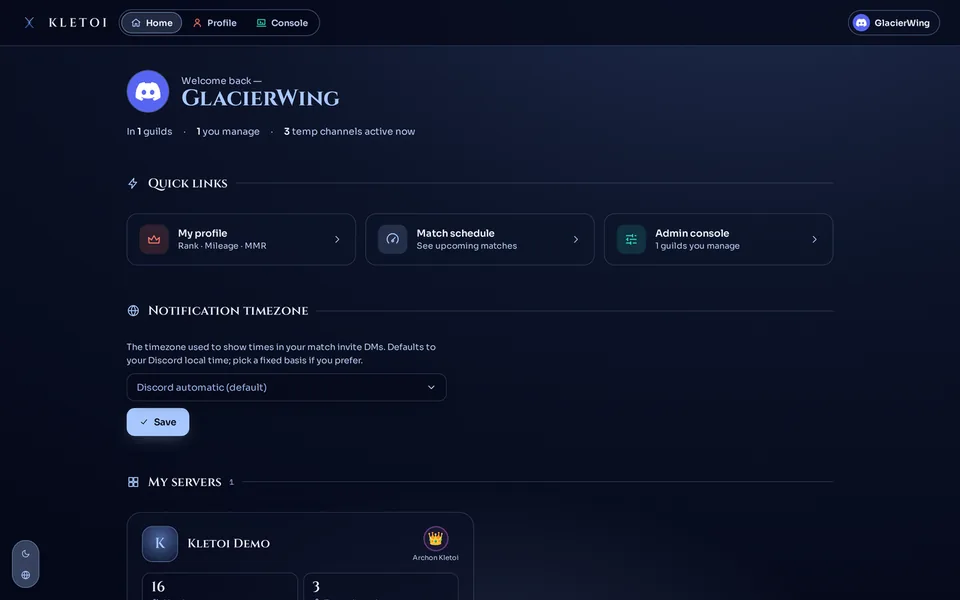
Log in at kletoi.com with Discord. On Home, press the Admin console card and pick your server.
 1
1
Choose the trigger in the setup
A server with no trigger yet opens the console on Guided setup with the trigger window already open. Pick one of three ways. Existing voice channel uses a voice channel you already have as the entrance. Create new creates a channel from a name you type once you press Create. Recommended setup in one go creates a category, a trigger, a management hub and a weekly report together. It shows what will be created first, and you can uncheck an item to leave it out.
With Existing voice channel and Create new, press Save to set the trigger. Recommended setup in one go finishes with Create these.
Creating a channel needs Discord's Manage Channels permission. Manage Server alone can't create channels.
En Discord
Press Quick start on the card
When someone with Manage Server presses Quick start, a trigger voice channel ➕ Make a room is created and registered as the trigger. If there is no management hub yet, one is posted there too.
No card? Send the command
/admin set-triggerPick a voice channel you already made. Use it only when the server has no trigger yet (it deletes any existing triggers)You are done when the trigger channel shows up in your server's voice channel list.
Check that a room gets created
Join the trigger channel
Join the voice channel ➕ Make a room (or the one you picked yourself). Your room is created and you are moved into it.
Look at the panel in the room's chat
A control panel appears in the room's chat. Rename the room, set the user limit or lock it from there.
You are done when the room appears and the panel shows up. When the last person leaves, the room disappears on its own.
Get ready for matches: matchmaker, DM notices, announce channel
There is no per-server switch for matches. Admins and the server owner can already run matches; appoint a matchmaker only to hand it to someone else. A matchmaker runs only the matches they created, while server admins run every match (Who can press what · Appointing and revoking matchmakers). To send invites as DMs, Allow bot DM notifications must be on. If the server turns on Require Riot link, only members with a linked Riot account can be added to matches. How to link is in Link and re-verify your Riot account.
¿Dónde quieres hacerlo?
En la consola web
Appoint a matchmaker
Pick a member and press Assign matchmaker.
En Discord
Appoint a matchmaker
/matchmaker grantPick the memberAppointing, revoking, and how a newly appointed member first opens the match screen are in Appointing and revoking matchmakers.
Turn on Allow bot DM notifications
On a new server this switch is off, and while it is off match invite DMs are not sent. Turn it on and press Save. You can see the current state in Discord. The starting state of the other switches is in Server settings at a glance.
/admin show-configLook at the Bot DM notifications lineSet a Match announce channel (optional)
Pick a text channel and press Save. With one set, the Join buttons are posted there for members the DM cannot reach, so nobody misses the invite (Server settings at a glance).
You are done when /admin show-config shows Bot DM notifications as 🟢 On.
Create the first match and send invites
Press Create match
Build the teams
Add members to Team 1 and Team 2 and pick a lane for each. The match can be created once both teams are the same size (up to 5 each) and no lane repeats within a team.
Press Create — send invites
With Allow bot DM notifications on, members on the roster get an invite DM with Join, Maybe and Decline buttons. Members who blocked DMs do not get it.
If Allow bot DM notifications is off and no invite reaches anyone, the match is still created and you see a notice about it. Turn on Allow bot DM notifications or set a Match announce channel. When the announce channel gets a post is in I didn't get the invite DM.
You are done when a listed member gets the invite DM. If you set an announce channel, the Join buttons for members the DM could not reach show up there.
If you get stuck
- Check whether Allow bot DM notifications is off. It is off on new servers. How to turn it on is in I didn't get the invite DM.
- A member may have blocked DMs from server members.
- With a Match announce channel set, the Join buttons for members the DM cannot reach are posted there.
Until a trigger channel is set, other menus send you back to Guided setup. Finish the trigger step above first. More is in The console is locked or commands are missing.
It tells you which permissions are missing and gives a re-invite link. See The server permissions Kletoi needs for what each one does. Approving again through the invite link is also covered in The console is locked or commands are missing.
- There is a limit on how many rooms can be open at once (per person and server-wide). At the limit the bot sends a DM. The numbers and what to do are in How many rooms can be open at once.
- No room appears either if the bot lacks permission to create channels or move members. Check with
/admin check-permissionsin The server permissions Kletoi needs.
Where to go next
To add more triggers or change their options, see Create or change a trigger channel. To move members who keep their headphones off to the AFK channel, see AFK auto-move. Tell your members the name of the trigger channel and send them A member's first 5 minutes. If the web screens are new to you, see A tour of the web console and logging in. How to create a match is in Team balance, lanes and positions, and how it goes from invites to a confirmed result is in Run a match, step by step. To fill in the past records of linked members in one go, see Importing past records and replays; for how a member links a Riot account, see Link and re-verify your Riot account. To turn on tiers from voice time, weekly challenges and seasons, see Voice mileage, tiers and badges, Weekly challenges and Running a season and its wrap-up. All server settings are in Server settings at a glance, and result cards and share links are in Share cards and result cards. To decide whether to use Premium, see Compare plans and free-tier limits.
Check it worked
Joining the trigger channel creates a room, and members receive the invite DM for your match. That is it.